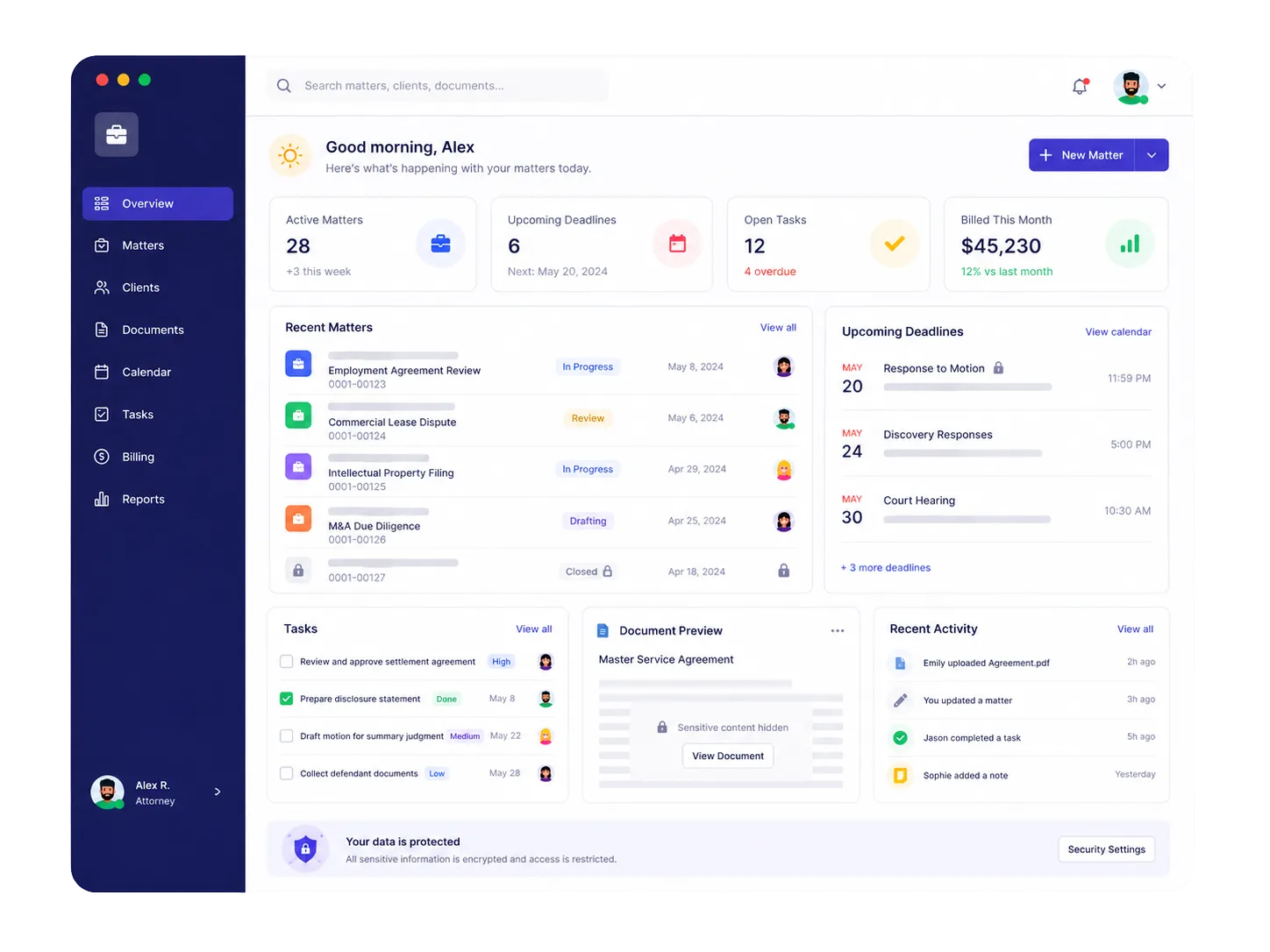
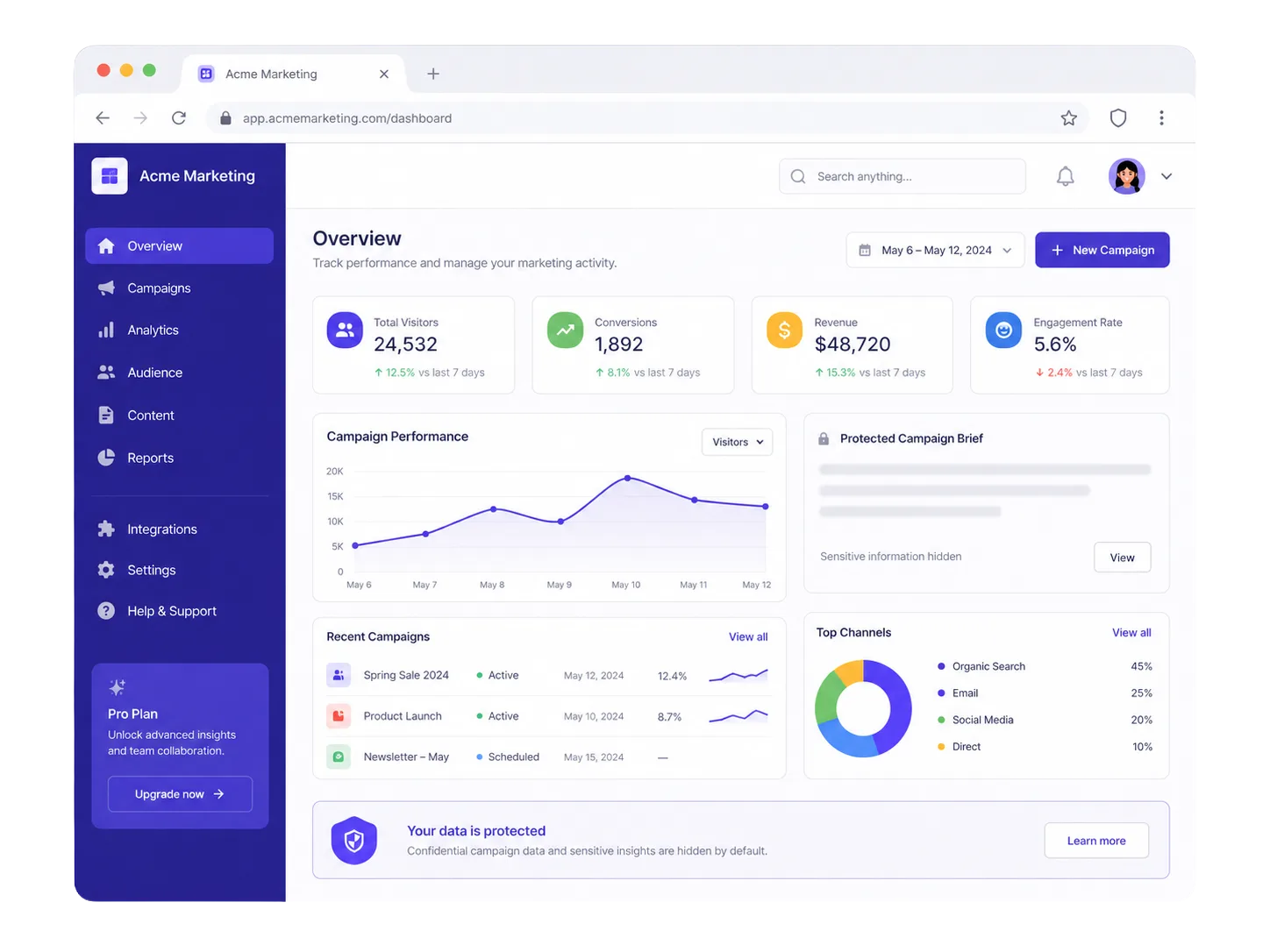
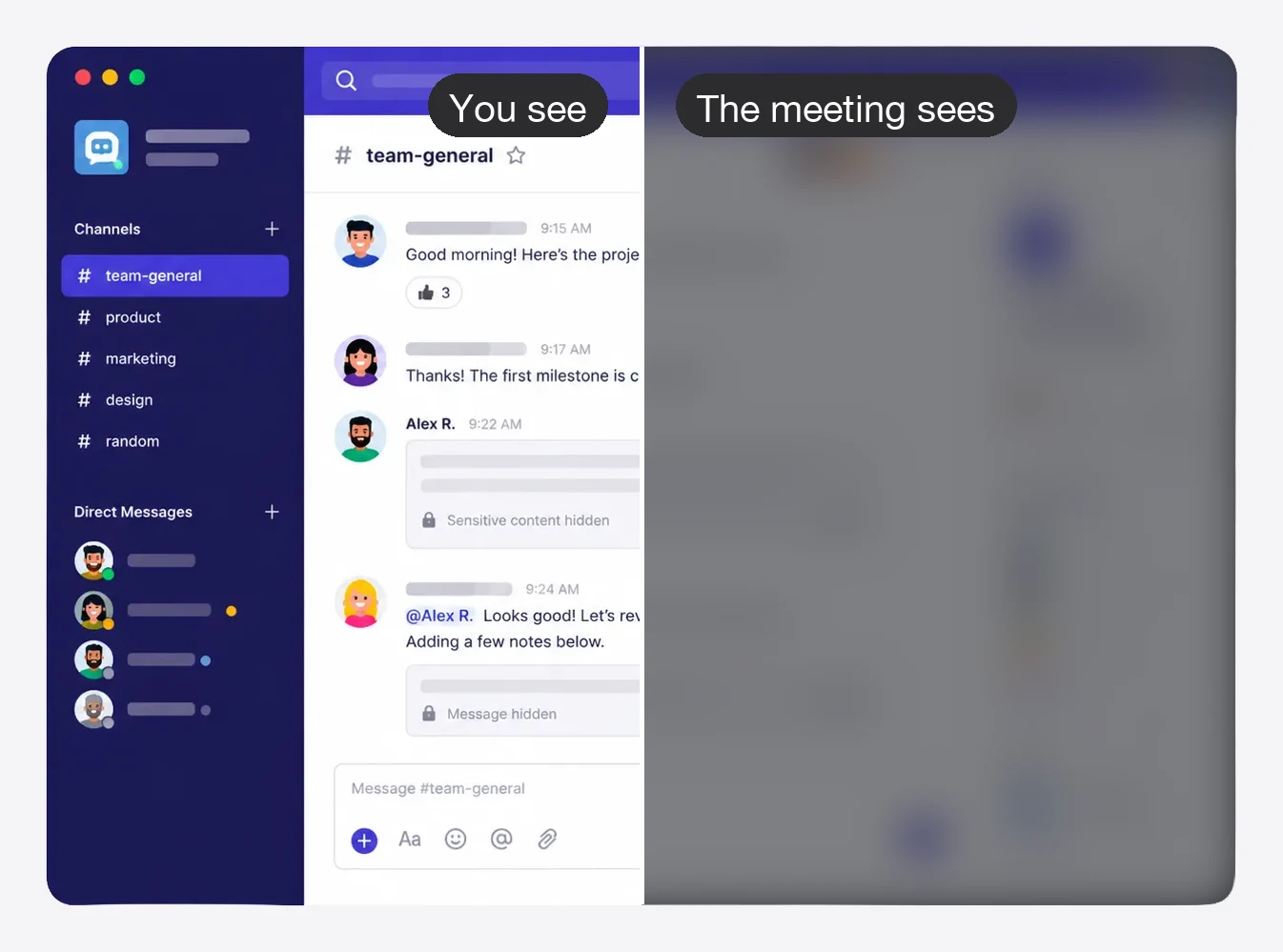
Stealth automatically hides sensitive apps and browser tabs when someone shares or records their screen. Deploy on every Mac and PC with Jamf, Kandji, Mosyle, or Intune.
The problem
Slack. Email. Payroll. Candidate notes. Customer data. One forgotten window can expose information you never intended to share. Stealth automatically hides sensitive apps and tabs during screen shares and recordings.
People forget. Stealth doesn’t.
The blur is on the real display. Zoom, Teams, Meet, Loom, and every recording see it too.
Who it’s for
The mistake is the same in recruiting, sales, support, and IT: someone shares a screen with the wrong window open. Training doesn’t catch it. Stealth does — and you can lock the policy so nobody turns it off.
For IT & security
Deploy with the MDM you already use. Silent activation — employees never paste a license key. Lock Slack, mail, and HRIS tabs so a curious click in Settings can’t undo the policy. Changes reach every enrolled Mac and PC in about five minutes.
For HR, sales, and support
A recruiter with Greenhouse behind Zoom. A sales engineer with Slack and CRM on a customer demo. A CS lead with another tenant’s ticket open. Stealth frosts those apps and tabs before anyone says “can you share your screen?”
Rollout
Don’t start by buying the whole company. Start with IT, recruiting, or sales engineering — then lock the policy and roll out.
Start with a team that shares screens constantly. Ten devices is enough to see whether the policy holds.
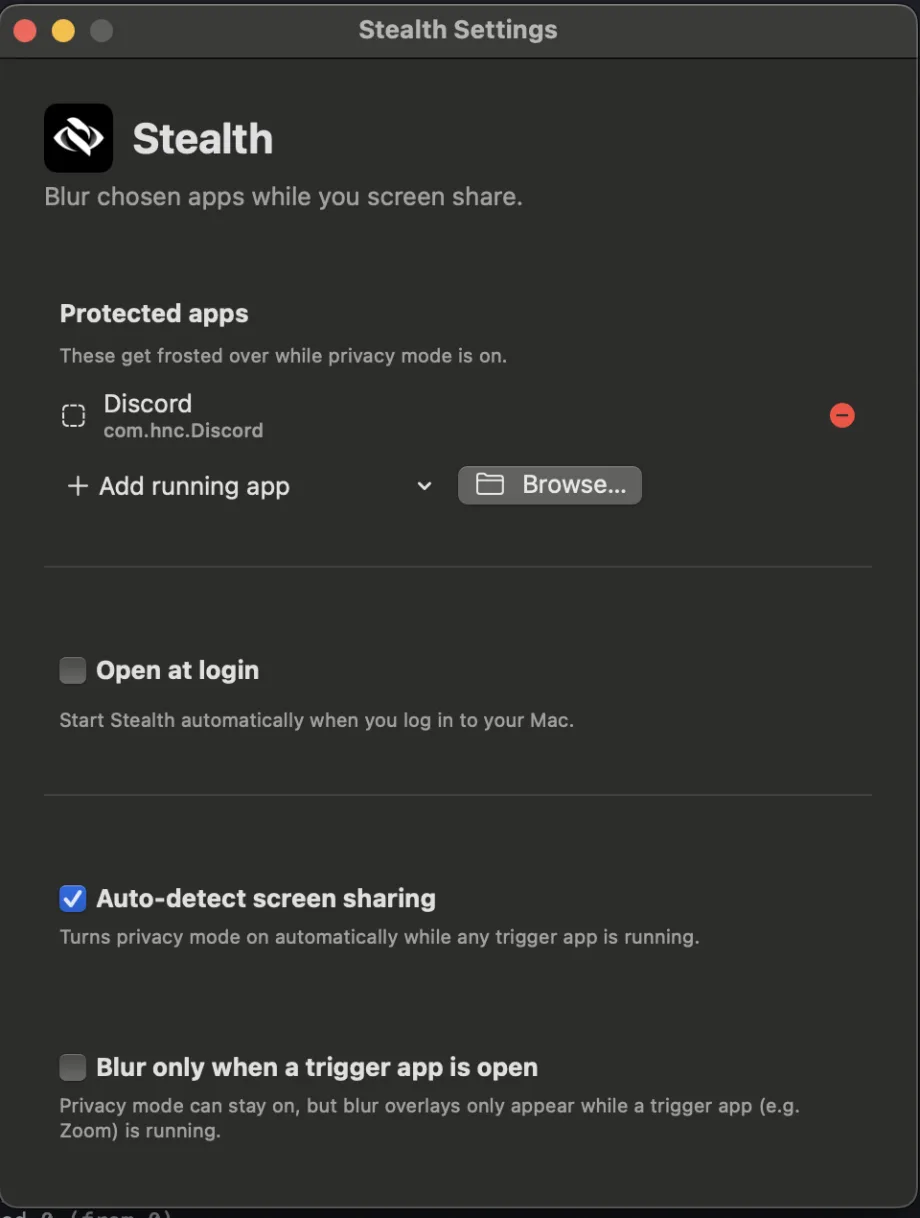
Slack, email, ATS, HRIS, payroll, CRM, banking — or add your own applications and URL rules.
Download the Jamf profile, Intune configuration, or invite link. New machines activate themselves.
Start Zoom or Teams and confirm protected apps are obscured. That’s the activation moment — not just installing the app.
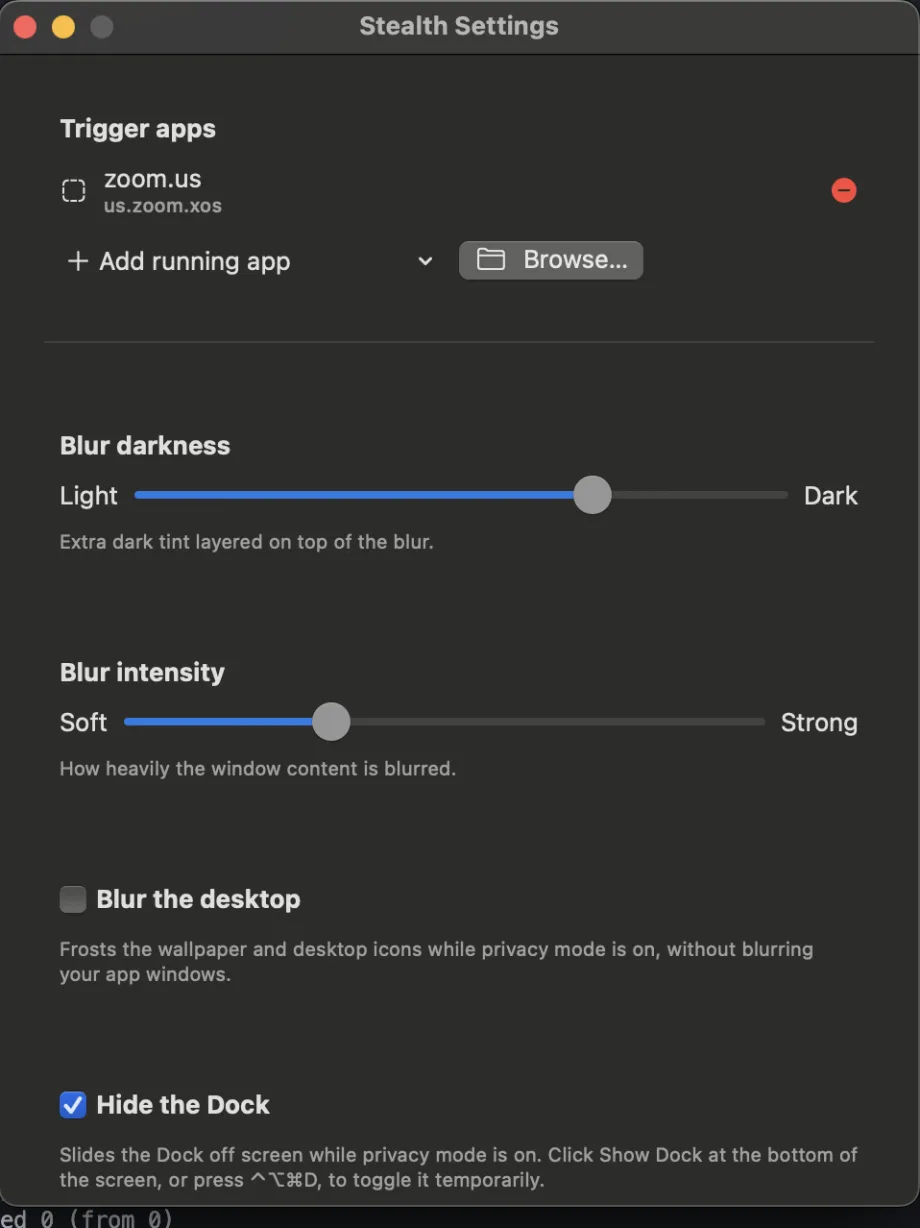
When you’re comfortable, prevent users from changing selected controls. Locked settings show as “Managed by your organization.”
Assign the profile to the remaining users or devices. One named user includes up to two computers.
The tab they forgot
Most leaks are a browser tab, not a whole app. Stealth frosts just the page when the URL matches your rules — Gmail, Workday, Greenhouse, banking — while the rest of the browser stays usable.
Company-wide rules. Lock mail.google.com, workday, greenhouse.io, or your own HRIS host. Every enrolled device gets the list.
Blur first, then check. On every tab switch the page frosts instantly, then lifts only if the tab is allowed. Sensitive content never flashes.
Chrome, Edge, and Brave on Mac and Windows. Safari on Mac. Firefox on Windows. Reveal is per tab, so unblurring Gmail doesn’t expose the next inbox.
Architecture
Fully local. The blur happens on the device. No screen upload, no cloud processing, nothing for a vendor to subpoena.
Minimal permissions. Window positions — and tab addresses only if you enable tab rules. Never page contents.
A last line of defense for what’s visible on screen. Stealth doesn’t inspect files, email, USB transfers, or network traffic. It does one job: keep sensitive apps and browser tabs out of screen shares and recordings.
Works with the tools you already run. Zoom, Meet, Teams, Webex, Loom, OBS — anything that captures the screen.
Works alongside your existing security stack. No extra suite required. We don’t claim HIPAA or SOC 2 badges we don’t have.
Pricing
Annual or monthly. Volume discounts as you grow. No per-feature upsell. One named user includes up to two devices.
Monthly billing is available at 10% more per month.
Just you? Personal Stealth is $19 one-time →
Good to know
No. Stealth doesn’t inspect files, email, USB transfers, or network traffic. It keeps sensitive apps and tabs out of screen shares and recordings. It works alongside whatever you already run — or on its own.
Yes. The team portal gives you a macOS configuration profile and a Windows registry snippet. Pair that with the Store app or PKG/DMG. Employees never see a license window.
Not if you use the deployment token. Optional work email on the profile attaches the device to that person instead of consuming an unnamed device seat.
No. Locked settings show as “Managed by your organization.” Change the lock in the portal and every enrolled computer picks it up on the next check, about five minutes.
No. Blur is local. The only network calls are license and policy checks — not pixels, not tab contents. Details on the security page.
Yes. Each app in the policy has a Mac bundle ID and a Windows process name. Each OS uses what it understands and ignores the rest.
Stealth protects full-display share and recordings of the display. A single-app window share does not include the overlay. That’s a real limit — say it in training, or lock people into “share screen” defaults where you can.
Stealth is a local utility, not a hosted processor of your patient or customer data. We don’t claim those badges. If you need a vendor packet, email [email protected].
Volume bands: $36/user/year or $3.30/month (5–24), $30 or $2.75 (25–99), $24 or $2.20 (100–249), $18 or $1.65 (250+). Monthly is 10% more. Change quantity in the portal; Stripe prorates immediately. Existing customers keep their current rate.
Yes. Personal Stealth is $19 one-time, 7-day trial, two activations. No MDM, no company locks.
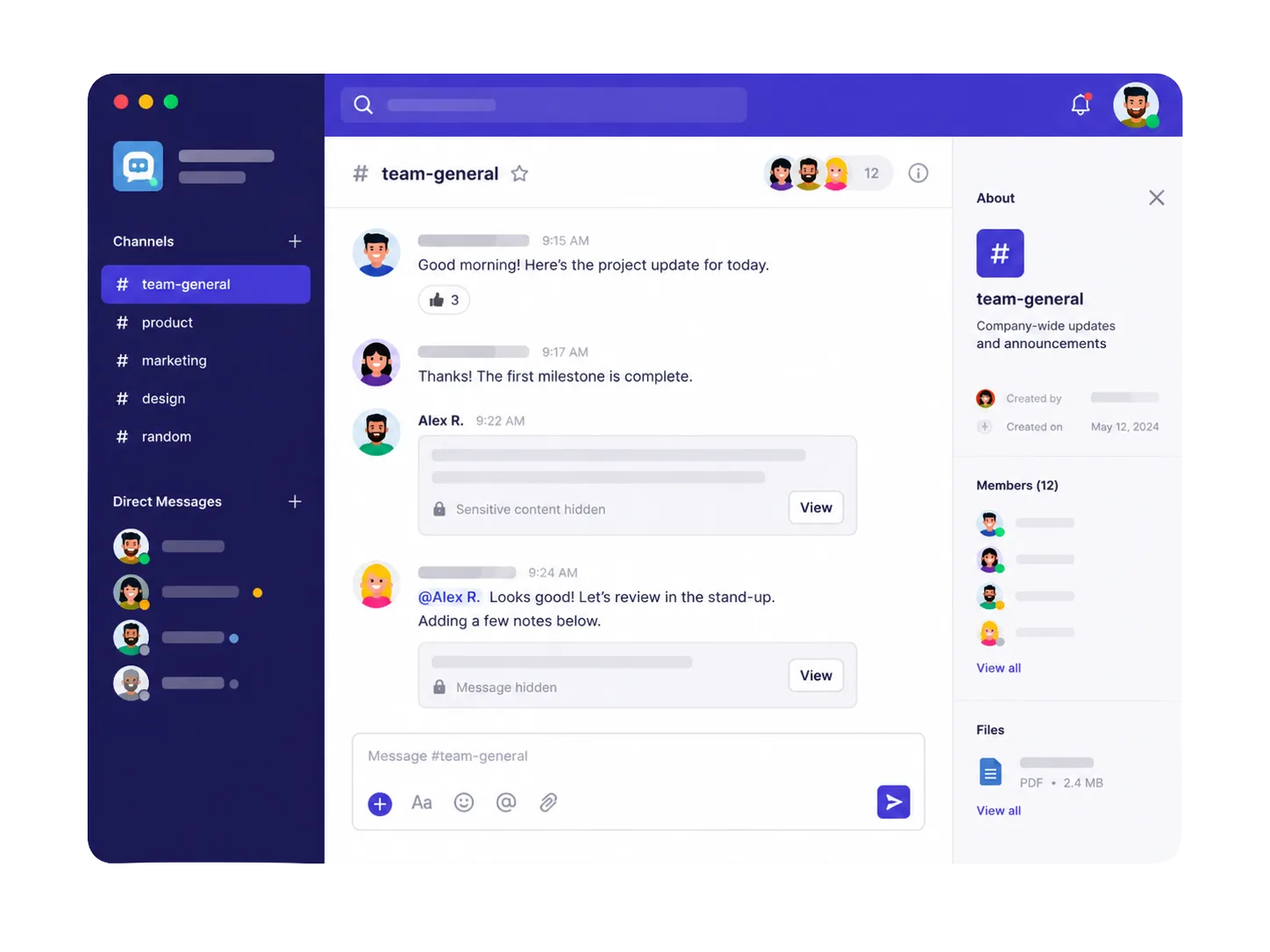
14-day company pilot on up to 10 devices. All features. No credit card.